
If a few users are experiencing connectivity errors, please review, and have the users review, this article for general browser troubleshooting. Check out specific browser troubleshooting here: MS Edge; Google Chrome
*NEW* Consider troubleshooting with our Support Gardener ChatGPT which has also been trained for screenshot and HAR file analysis.
Training Platform
I don't see any training assignments
Where do I login?
I use SSO and I can't log in
I don’t use SSO and can’t log in
I already completed my training but received a notification
How do I know that I’ve completed all of my assignments?
The training video keeps getting stuck, won't load or subtitles won't appear
I can't click the complete button (or any type of limited functionality)
I can't complete an assessment after failing by passing grade
I didn't receive an expected notification
LMS Gateway
The training video keeps getting stuck or won't load
I can't click the complete button (or any type of limited functionality)
CyberEscape Online and Virtual Tabletop Gameplay
I am stuck on this puzzle, I’ve tried everything
Captions are not appearing or have disappeared
My mic or camera isn’t working
I can't see or interact with a part of a puzzle
Can I schedule a session for my other colleagues? How do I add them?
My video is stuck, won't load, or has a low bandwidth error. What do I do?
Do I receive a certificate of completion?
I did not receive my email for authentication / OTP or code it's not working
Are these sessions already in my time zone?
I received a Video & Audio warning when testing. Should I still join?
I constantly experience connectivity errors
I don't see any training assignments
- Check User Management to see if a duplicate account has been created
- If there is a duplicate account, deactivate one of the accounts
- If you are using SCIM, the participant's email address for SSO and Active Directory could be mismatched. Confirm the email address being used to sign-in is the same email address in Active Directory. If it is not, you have two options:
-
-
-
Update their SSO (SAML name ID) to match what is in User Management
-
Update their email in Active Directory to match what they use to login
-
-
- If they received a notification, verify it was received by the same email address the end user is using to log in. If not, check User Management detailed in step above.
- Review a full screenshot of their dashboard and URL to confirm if assignments have loaded:
- If the campaign is complete along with the message "You have no completed assignments yet" pictured here:
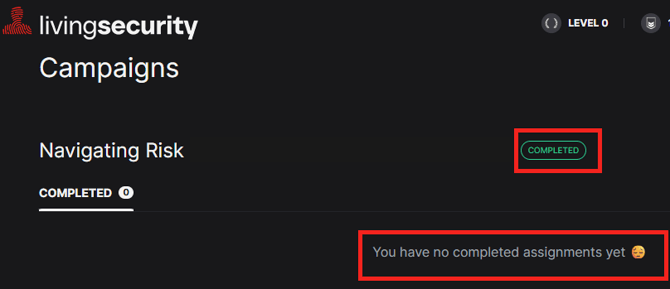
- Then a security tool, browser error, or browser extension is blocking content loading
- Ask the user to open in an incognito window.
- If content loads, the block is likely on their local machine. Ensure they do not have any ad blockers or other extensions that might be interfering. Consult with your IT department for further troubleshooting / allowlisting.
- If content doesn't load, direct your IT department to review whether there are local or regional network and endpoint policies that may differ from the broader company-wide allowlist already in place. In some cases, SSL inspection, ad-blockers, or iframe/security restrictions can vary by office location, VPN profile, or even device-level configuration.
- Ask the user to open in an incognito window.
- Then a security tool, browser error, or browser extension is blocking content loading
- If the campaign is complete along with the message "You have no completed assignments yet" pictured here:
-
- If a name different than what is in User Management, or their email address is appearing instead of their name, there is a disconnect with User Provisioning
- If using SCIM or Just in Time, please review mapping and the user's record for errors
- If a name different than what is in User Management, or their email address is appearing instead of their name, there is a disconnect with User Provisioning
- Verify the user should have assignments
- Confirm user is in the audience tied to the campaign
- If the user was added to an already launched campaign
- Verify the campaign is dynamic
- Review this article to ensure you added the user correctly
- If the Campaign is Specific Dates, user will receive assignments scheduled for the day they joined and onward unless "assign past content" was toggled on in Campaign Builder before the user joined the campaign
- Confirm our site or hosted assets are not being blocked for the user
-
- If an image/video is not shown, please be sure these domains are whitelisted as detailed here: https://www.livingsecurity.com/support/training-technical-details-for-a-successful-launch
Still can't resolve?
- Submit support request with:
- Full sized screen shots / screen recording of the above
- Company name, end user name and email address
- Campaign details
- Provide Campaign name and Audience name
- Expected content on dashboard - i.e. Day 1 content. Security Made Simple
- Confirm if notifications are enabled
- If added to an active campaign, detail how you added, and order of your steps
Where do I login?
- If your organization is SSO-enabled then the application may be accessed via a tile or application dock, else access via app.livingsecurity.com.
I use SSO and I can't log in
- Confirm they are taken to your authentication screen after entering their email address
- If they are not taken to your authentication screen, ensure their email domain entered correctly, and is included in domains for your SSO connection
- Confirm user is in User Management
- Confirm the end user is assigned to the SSO application within your IdP
- Ensure they are accessing through appropriate tile or directly at app.livingsecurity.com
Still can't resolve?
- Submit support request with:
- Full sized screen shots / screen recording of the above
- Collect a SAML trace
I don’t use SSO and can’t log in
- Confirm user's email address is an allowed domain
- Confirm user is in User Management with an Active status
- Reset the password in User Management
- Go to app.livingsecurity.com in an Incognito/InPrivate window and submit a password reset with the end user's email address
Still can't resolve?
- Submit support request with:
- Full sized screen shots / screen recording of the above
I already completed my training but received a notification that it is still due or past due
- Verify the notification is received by the same email address the end user is using to login
- If the notification is received by a different email address, you will need to deactivate one of the accounts, keeping the one used for authentication.
- If you are using SCIM, the participant's email address for SSO and Active Directory could be mismatched. Confirm the email address being used to sign-in is the same email address in Active Directory. If it is not, you have two options:
- Update their SSO (SAML name ID) to match what is in User Management
- Update their email in Active Directory to match what they use to login
- If you are using SCIM, the participant's email address for SSO and Active Directory could be mismatched. Confirm the email address being used to sign-in is the same email address in Active Directory. If it is not, you have two options:
- If the notification is received by a different email address, you will need to deactivate one of the accounts, keeping the one used for authentication.
- Verify the date of the email notification is after the end user's completion date
- Check real time participant analytics (expanded drop down) to confirm completion
- Have the end user view their leaderboard points which captures all completions
- If that shows completion, please request a screenshot.
- If that does not show completion, then a completion has not been captured.
- Ask the end user to open the training to ensure they progressed through the last asset (ie video progressed to the end), and clicked the COMPLETE button at the end.
- Ask the end user to complete the training again.
Still can't resolve?
- Submit support request with:
- Full sized screen shots / screen recording of the above
- A HAR file if end user can not complete
How do I know that I’ve completed all of my assignments?
- Direct end user to their dashboard
The training video keeps getting stuck, won't load or subtitles won't appear
- While our whitelisting requirements may not be necessary for the majority of your users, based on various network landscapes (location, network settings, laptop configuration, etc) it might be necessary for others. Ensure all required and recommended whitelisting has been completed.
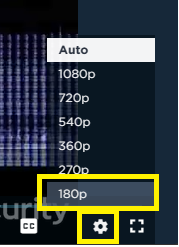
- Change video quality to lowest option, settings in bottom right corner
- Review internet speed troubleshooting steps with end user
- Review browser troubleshooting steps with end user
- If they are using a VPN and you are comfortable having them turn it off, request they turn if off.
- After addressing any of the above, have the end user clear their cache, close all other windows to improve bandwidth, and then restart the training
- If this is only occurring with one user, please reach out to your own technical team as this is likely tied to their unique tech landscape.
- If this is occurring amongst the majority of end users, submit a support request with:
- Full sized screen shots
- A HAR file from the end user as they experience the error
I can't click the complete button (or any type of limited functionality)
- Preview the training in your catalog to see if the end user might be clicking a dead area
- Review browser troubleshooting steps with end user
- If they are using a VPN and you are comfortable having them turn it off, request they turn if off.
- After addressing the above, have the end user clear their cache, close all other windows to improve bandwidth, and then restart the training
Still can't resolve?
- If this is only occurring with a small percentage of users, please reach out to your own technical team as this is likely tied to their network or device settings. Your IT team should review:
- End user device settings
- End user browser plugins/extensions
- Whitelisting completed for end user's network
- If this is occurring amongst the majority of end users, submit a support request with:
- Full sized screen shots / screen recording of the above
- A HAR file from the end user as they experience the error
I can't complete an assessment after failing by passing grade
- Review browser troubleshooting steps with end user to ensure they are using a supported browser and device.
- Have the end user clear their cache and then restart the training in an incognito window.
- If they are using a VPN and you are comfortable having them turn it off, request they turn if off.
Still can't resolve?
- If this is only occurring with a small percentage of users, please reach out to your own technical team as this is likely tied to their network or device settings. Your IT team should review:
- End user device settings
- End user browser plugins/extensions
- Whitelisting completed for end user's network
- If this is occurring amongst the majority of end users, submit a support request with:
- Full sized screen shots / screen recording of the above
- A HAR file from the end user as they experience the error
I didn't receive an expected notification
- View your email history log to confirm platform sent the notification
- If email is logged there, please contact your IT department to confirm proper email whitelisting has been completed, and to further search for and track the email
- If email is not logged there, review campaign settings to ensure notifications were turned on and day, time, frequency trigger was met to send the notifications
- Submit a support request with:
- A screenshot showing the notification trigger for example:
- If manager email summary not received, a screenshot of those settings
- If end user notification not received, a screenshot of campaign content block showing notification
- All campaign / notification details needed
- Email address of person who did not receive
- A screenshot showing the notification trigger for example:
I am stuck on this puzzle, I’ve tried everything
- Instruct them to ‘Restart’ the puzzle (no time penalty will be incurred)
- Instruct them to change leader
- Join the session to assist
- Review browser troubleshooting steps with end user
- If they are using a VPN and you are comfortable having them turn it off, request they turn if off.
- After addressing any of the above, have the end user clear their cache, close all other windows to improve bandwidth, and then restart the training
Still can't resolve?
- If this is only occurring with a small percentage of users, please reach out to your own technical team as this is likely tied to their network or device settings. Your IT team should review:
- End user device settings
- End user browser plugins/extensions
- Whitelisting completed for end user's network
- If this is occurring amongst the majority of end users, submit a support request with:
- Full sized screen shots / screen recording of the above
- A HAR file from the end user as they experience the error
Captions are not appearing or have disappeared
- Captions can be enabled using the Caption Icon in the bottom right corner of the video pictured here:
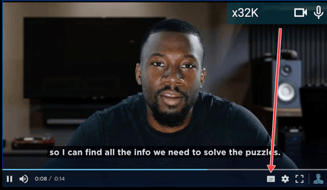
- If Captions are not appearing
- Low bandwidth may be preventing the captions from loading before the video starts. Allow the video to play and then attempt to enable the captions
- A security tool, browser error, or browser extension may be blocking the captions from being loaded into the video player
- Review browser troubleshooting steps with end user
- Ask the user to open in an incognito window.
- If captions load, the block is likely on their local machine. Ensure they do not have any ad blockers or other extensions that might be interfering. Consult with your IT department for further troubleshooting / allowlisting.
- If captions do not load, direct your IT department to review whether there are local or regional network and endpoint policies that may differ from the broader company-wide allowlist already in place. In some cases, SSL inspection, ad-blockers, or iframe/security restrictions can vary by office location, VPN profile, or even device-level configuration. Whitelisting Requirements
- MS Edge known issue and resolution
-
Still can't resolve?
- If this is only occurring with a small percentage of users, please reach out to your own technical team as this is likely tied to their network or device settings. Your IT team should review:
- End user device settings
- End user browser plugins/extensions
- Whitelisting completed for end user's network
- If this is occurring amongst the majority of end users, submit a support request with:
- Full sized screen shots / screen recording of the above
- A HAR file from the end user as they experience the error
- If this is only occurring with a small percentage of users, please reach out to your own technical team as this is likely tied to their network or device settings. Your IT team should review:
- If Captions are not appearing
My microphone or camera isn’t working
- Enable the mic and camera (Detailed instructions)
- Additional troubleshooting: (Detailed instructions)
I can't see or interact with a part of a puzzle
- Have end user zoom in or out through browser settings
- Have end user change their screen resolution
- Troubleshooting steps for end user
Can I schedule a session for my other colleagues? How do I add them
- Yes, end users can select Book for Team option and add colleagues to the session. An email confirmation will be triggered to end users added this way.
My video is stuck in a Teams CyberEscape Online experience, what do I do?
- Review browser troubleshooting steps with end user
- Review gameplay video controls with end user
- If they are using a VPN and you are comfortable having them turn it off, request they turn if off.
- After addressing any of the above, have the end user clear their cache, close all other windows to improve bandwidth, and then refresh the session
- If this is only occurring with a small percentage of users, please reach out to your own technical team as this is likely tied to network or device settings. Your IT team should review:
- End user device settings
- End user browser plugins/extensions
- Whitelisting completed for end user's network
- If this is occurring amongst the majority of end users, submit a support request with:
- Full sized screen shots / screen recording of the above
- Company name, campaign name, session ID (can be found in session report)
- End users' email address
- A HAR file from the end user as they experience the error
Do I receive a certificate of completion?
- Completion certificates are sent if set up within the campaign, and are accessible from the training dashboard. Admins can also customize and send these certificates off the platform
I did not receive my email for authentication / OTP or code is not working
- Have end user check spam folder
- Check quarantine
- Confirm email submitted for OTP does not have any typos
- Confirm their email domain is in your approved domain list
- Confirm whitelisting has been completed and throttling disabled for the following IPs:
- 198.37.157.57
- 198.37.157.99
- 167.89.96.129
- 149.72.82.76
- Confirm end user is using an approved browser and device.
Still can't resolve?
- If this is only occurring with one user, please reach out to your own technical team as this is likely tied to their unique tech landscape.
- If this is occurring amongst the majority of end users, submit a support request with:
- Full sized screen shots / screen recording of the above
- Company name, campaign name, session ID (can be found in session report)
- End user email address
Are these sessions already in my time zone?
- Yes - the end user registration process and calendar invites are localized to the end user's time zone
When escalating to Living Security, please always provide:
- Account name
- Areas of product impacted, ie Training campaign and specific campaign name
- End user email addresses impacted
- Screenshots or screen recordings of the error
- SAML trace or HAR file
I received a Video & Audio warning when testing. Should I still join?
- Yes, this is a warning indicating low bandwidth or other suspected compatibility issues. Users with this error can still join the session but they may experience lagging/voice errors. Here are some steps below that will help with a better connection.
- Review browser troubleshooting steps with end user
- Restart browser, device, or internet router.
- If able to, try plugging the device directly into an ethernet connection for the strongest connection. If there is no ethernet cord, try moving closer to the router.
- Close other apps, browser tabs, or windows that are running in the background of the device.
Still can't resolve?
- Reach out to your own technical team as this is tied to their bandwidth, network or device settings. Your IT team should review:
- End user device settings
- End user browser plugins/extensions
- Whitelisting completed for end user's network
