
-
Add Targeted Users to Phishing Tool via Training Audience Sync
- Remove Targeted Users from Phishing Tool
- Smart Grouping of Clickers
Add Targeted Users to Phishing Tool
To populate users in the phishing tool, we recommend creating audiences within the Training tool and syncing them. This process will generate a target group in the phishing tool with the same name as the training audience and populates it with the users from the audience you created.
-
In the Training Admin Dashboard, navigate to the Audience section under the Campaign header.
-
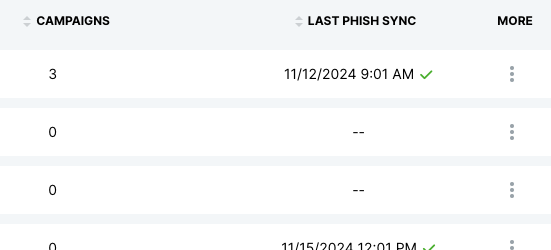
2. Select the audience you’d like to sync with the phishing tool. Check the Last Phish Sync column for quick metrics on the sync status - this will indicate whether the previous sync succeeded or failed.
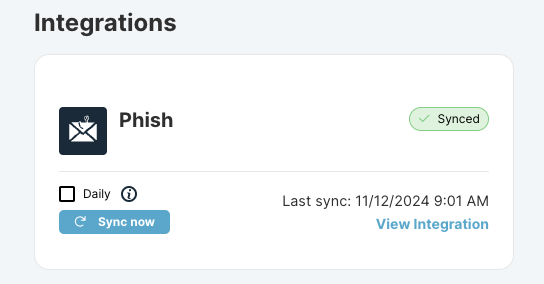
- On the right-hand side, under the Integrations header, choose your sync options. You can perform a manual sync by clicking Sync Now or enable the daily sync option by checking the box. Enabling daily sync ensures your target users remain up-to-date in the phishing tool without requiring manual updates.
ℹ️ Attributes that will sync (if populated):
First Name, Last Name, Email, Phone Number, City, State, Division, Country, UserType, and Timezone.
• Timezone: Must be in IANA format (for example: America/New_York).
• Language: Cannot be set through audience syncing. It is assigned when a user self-selects their language during training. If no selection has been made, Language will default to your global language setting for Phishing Simulations.
Remove Targeted Users
Delete users no longer being Phished
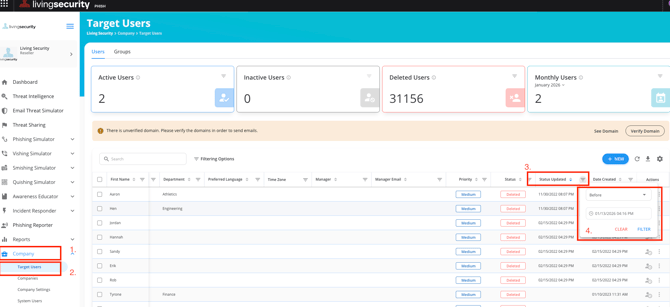
To keep your user list clean within the Phishing Tool with the one-way audience syncs, we recommend to regularly remove any users that have not been recently updated in the the Phishing Tool. To do so, open the Phishing Tool and take the following steps:
-
Determine when your latest audience sync was
-
Navigate to Company > Target Users
-
Filter Target Users by "Status Update" field
- Select and delete any Target Users that were not updated in the most recent audience sync
Metrics are retained for deleted users. Resync these users from the Training Platform audiences that contain to reinstate them for Phishing.
Delete deactivated Target Users
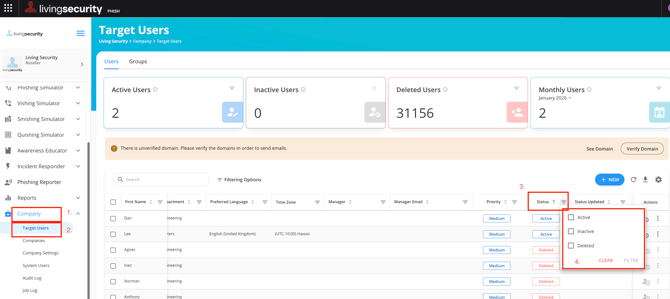
If user deactivation is already managed in User Management, users are already deactivateed in the Target Group. Follow these steps to delete them:
- Navigate to Company > Target Users
- Filter by Inactive Users
- Select and delete Inactive Users
Smart grouping of clickers
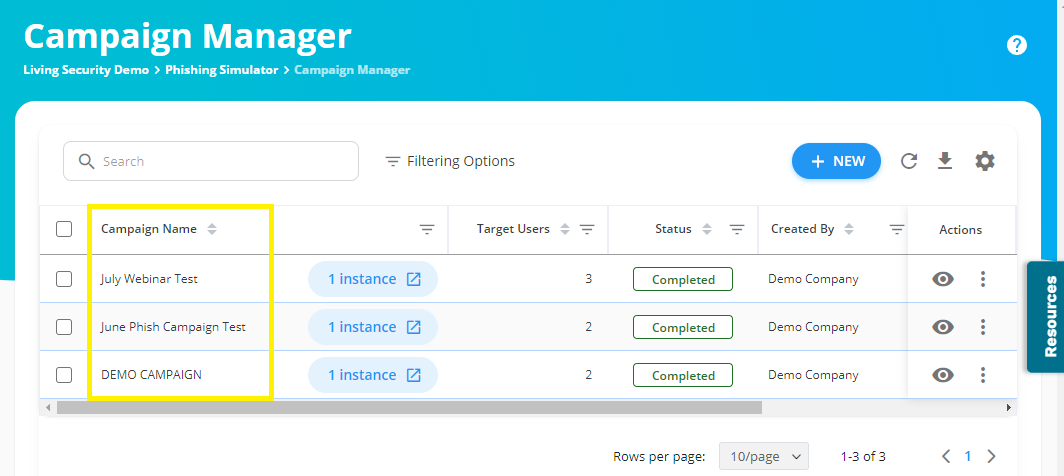
To streamline phishing remediation campaigns, the Living Security Phishing Remediation Tool automatically creates an Audiences on the Training Platform when you launch a Phishing Campaign and then populates it with those that failed the simulation. The Audience will have the same name as the Phishing Campaign.
Phishing Simulation Tool:
Training Platform: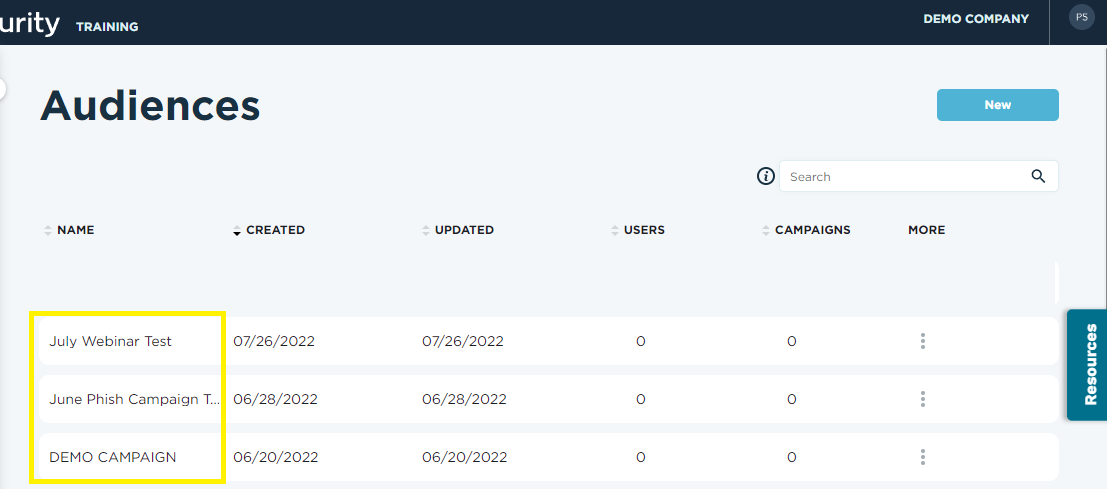
The Training Platform Audience is created after you launch the Phishing Campaign. The Audience is then populated with any Target User that interacts with the Phishing Scenario (beyond opening the email).
ℹ️ Our integration automatically creates an Audience named after each Phishing Campaign. To ensure accurate tracking, please avoid using the Create New Instance feature in the phishing tool when setting up new campaigns. Using New Instance can result in multiple campaigns being linked to a single Audience in Training, which skews reporting by aggregating data from multiple campaigns.
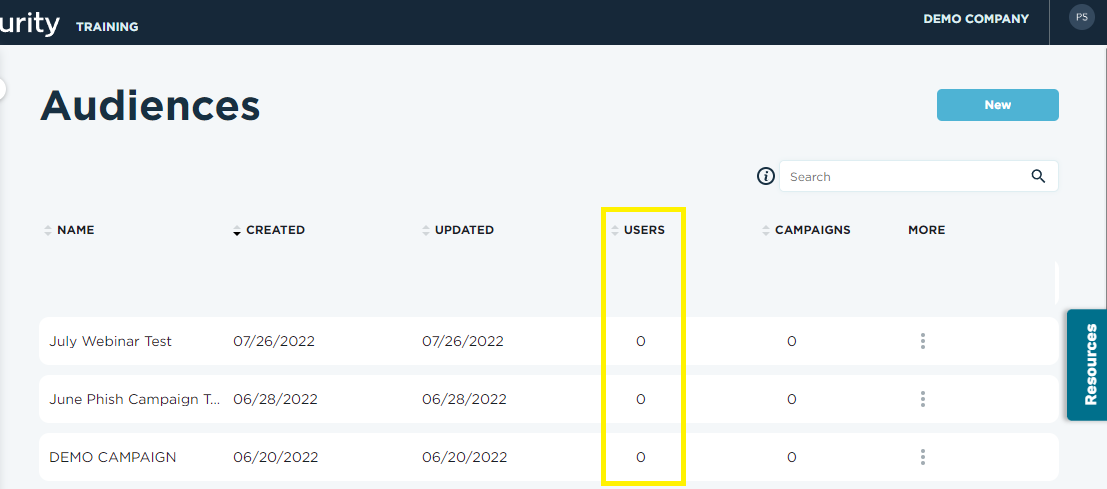
💡Note - Each syncing step can take up to an hour to process💡
TRAINING AUTOMATION TIP: Assign the Audience to a Dynamic Campaign!
- Target User clicks a link, downloads an attachment, or submits credentials,
- "Clicker" will be added to the Training Audience within an hour
- "Clicker" will auto-enroll in the Dynamic Campaign
Here is an example of a Training Audience that has automatically added users based on the Phishing Campaign outcome:
Phishing Campaign: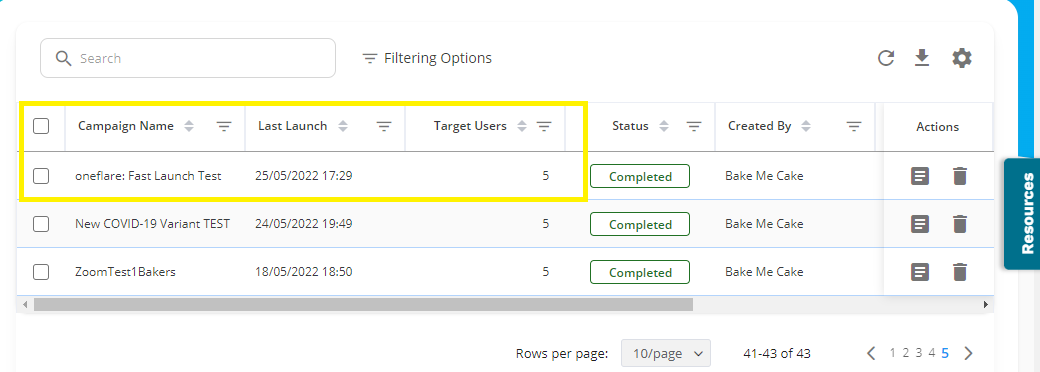
Training Audience:
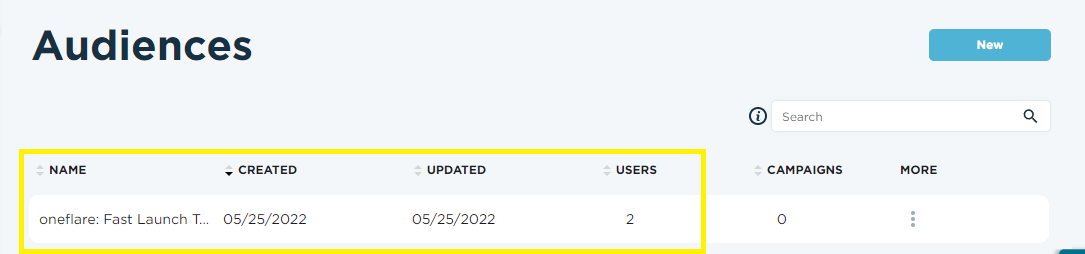
As you can see from the screenshots above, there were 5 Target Users in the Phishing Campaign, but only 2 users were pulled into the Training Audience. Let's take a closer look at the report on the Phishing Campaign to see how we got to this number.
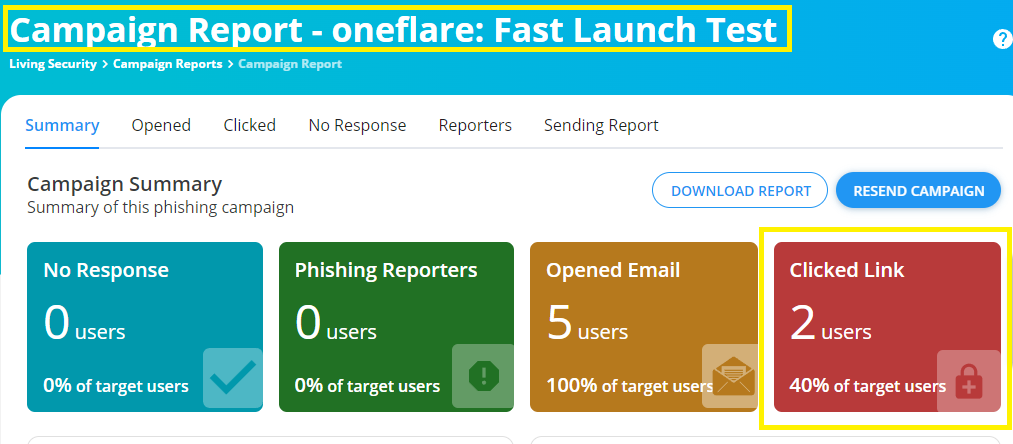
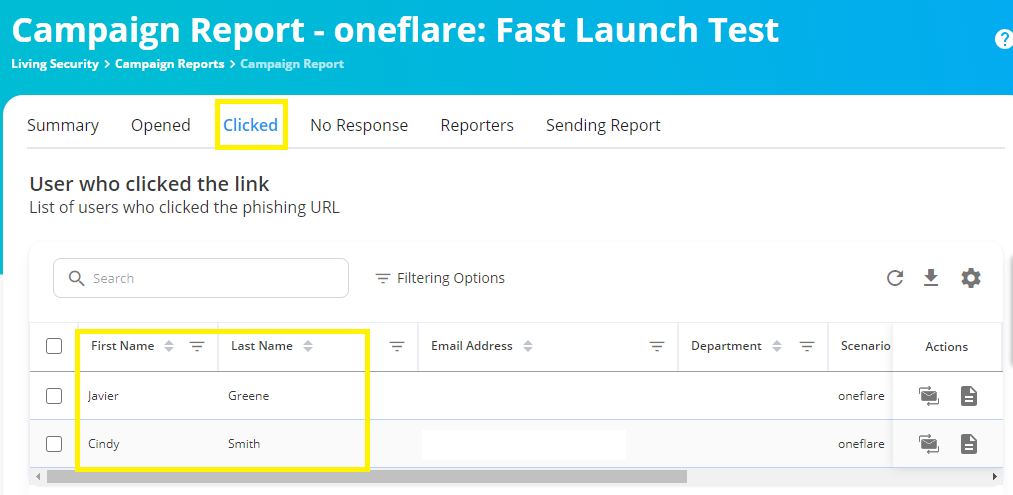
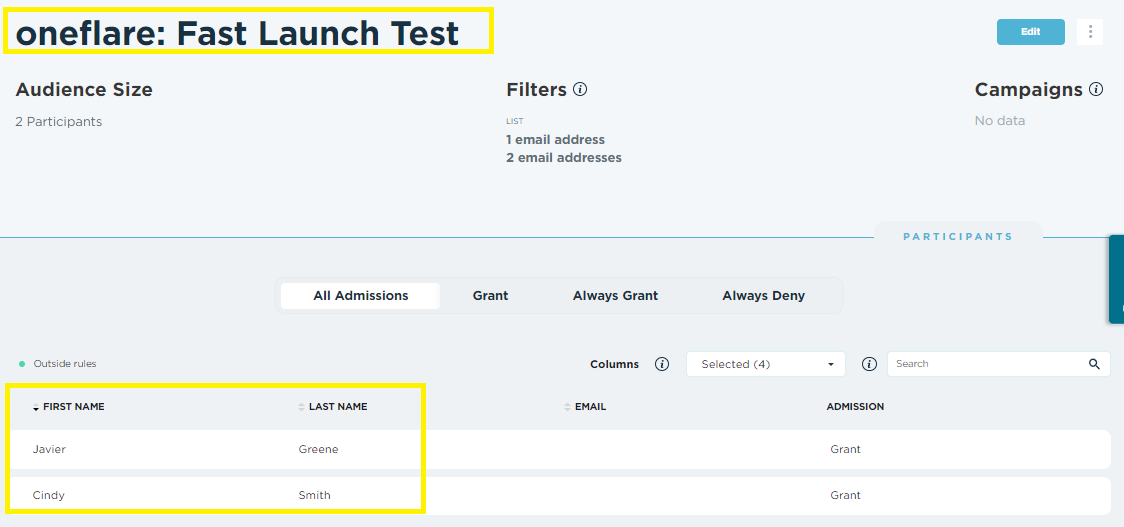
Based on the Phishing Campaign outcome, only 2 users clicked on the Phishing Scenario. We can now click on the Clicked tab to compare the users who clicked to the users who got automatically added to the Training Audience.
Phishing Campaign Report:
Training Audience:
If you do not need the Training Audience for the Phishing Campaign you launched, you are able to delete the Audience.
A "clicker" will be auto-created on the Training Platform if they do not already exist in User Management.
Recommended next Steps ➡️:
Go To Next Section: Scenario Settings
Return to Overview: Phishing
