
Enabling Microsoft Teams Notifications for a Campaign
- After App installation, the Training Tool can send Microsoft Teams notifications about the users' assigned security awareness training.
- These notifications will tell the user when training has been assigned, when a due date is approaching, and send past due notifications.
To add an MS Teams notification to a Campaign, you will click the plus sign on one of the three available notifications while in Campaign Builder: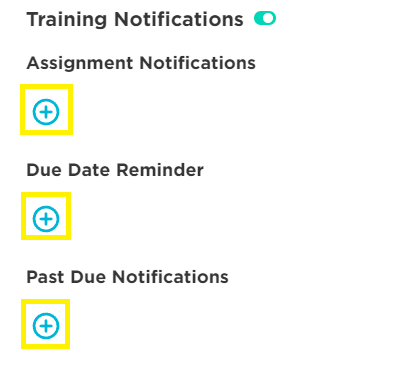
Next, select the MS Teams notification. 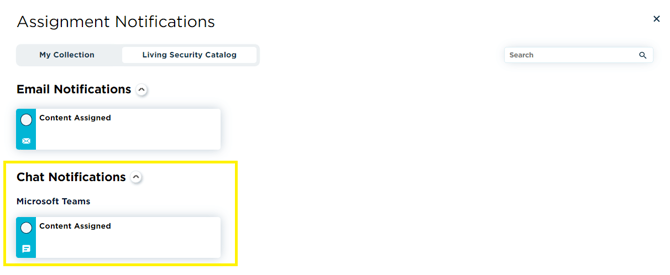
💡 You can use both an Email and Microsoft Teams notification to be delivered simultaneously.
Repeat this step for the Due Date Reminder and Past Due Notifications. 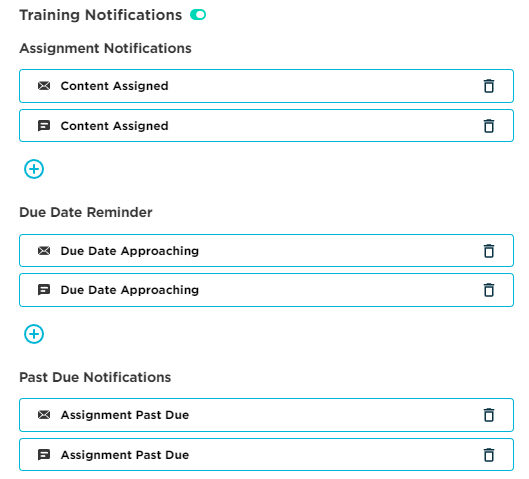
💡Email and Chat notifications are distinguishable by their icon.💡
Once a Campaign has been launched, and MS Teams notifications have been enabled, the end-user in the Campaign will receive those notifications through the MS Teams app on the day they execute.
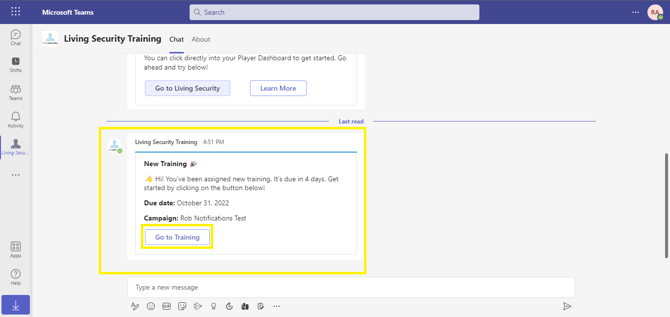
The notification will include a brief message, a due date, the name of the Campaign, and a button to be taken to the LS Training Dashboard to start the assignment.
Training Assigned Notification Example:
For more assistance on creating a campaign, visit Campaign Builder Overview!
If you have any additional questions, feel free to contact us!
