
The Phishing Reporter button automatically displays in each user's own language, based on their Outlook display-language setting — no action needed from the user.
How it works- Add languages (admin): Go to Phishing Reporter → Settings → Dialog Box Settings and add each language you want to support, then translate the dialog text for each.
- Button matches the user: In Outlook (page-view or ribbon), the button compares the user's display language to your supported languages.
- Match → shows that language. No match → shows your Set Default Language.
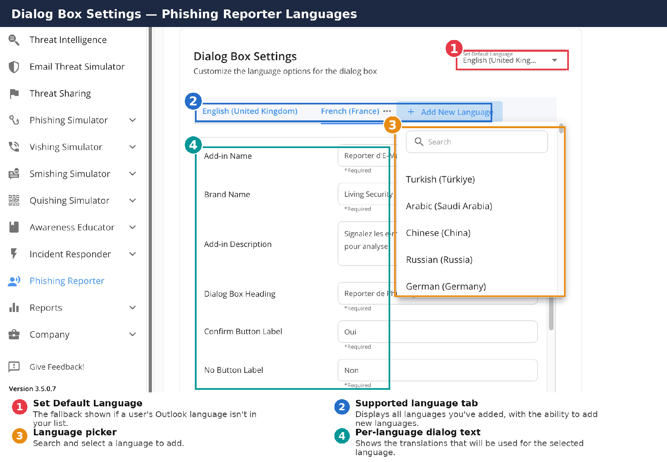
Dialog Box Settings — see numbered callouts and legend above.
Good to know- There's no language picker for users — the button follows their Outlook display language.
- Only languages you've added will display; everything else uses the default.
- For the ribbon add-in, Microsoft sets the pop-up language from the user's Outlook settings (same behavior).
- Redeploy the button after any change to languages or dialog text.
Related: Customization & Deployment • Page View Reporter • Ribbon Reporter
