
If you're using a training page with a click-only template, the training page will be best added within the email template. This location ensures the click goes directly to your training page. As a reminder, a click-only template is a phishing scenario in which a user can only click on a link and is distinguished as click-only in the category section of Phishing Scenarios. 
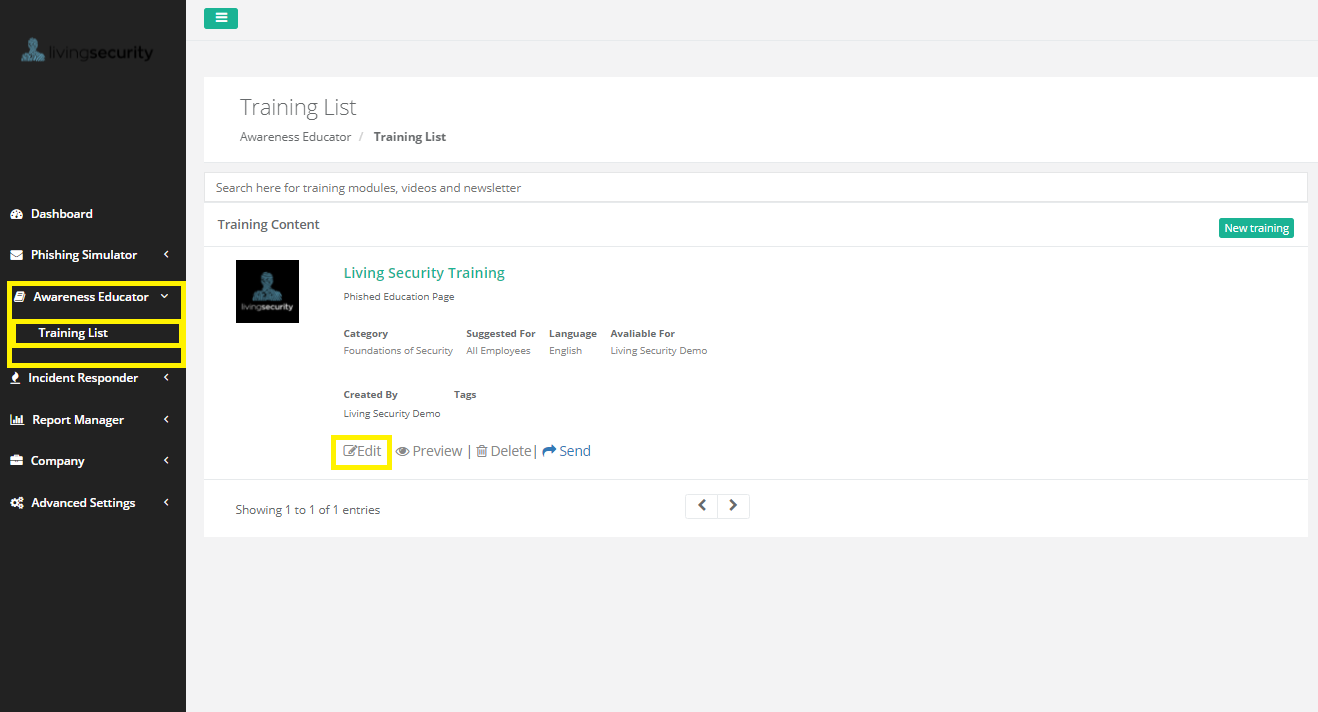
In the Edit view after clicking the paper and pencil symbol, you will need to replace the default Landing Page with the Training page you wish your Target Users to be rerouted to. For this, you will need to copy the HTML source from the Training Page you have created. To get to the Training Page, you will go to Awareness Educator and Training List and click Edit on the Training Page you would like to use.
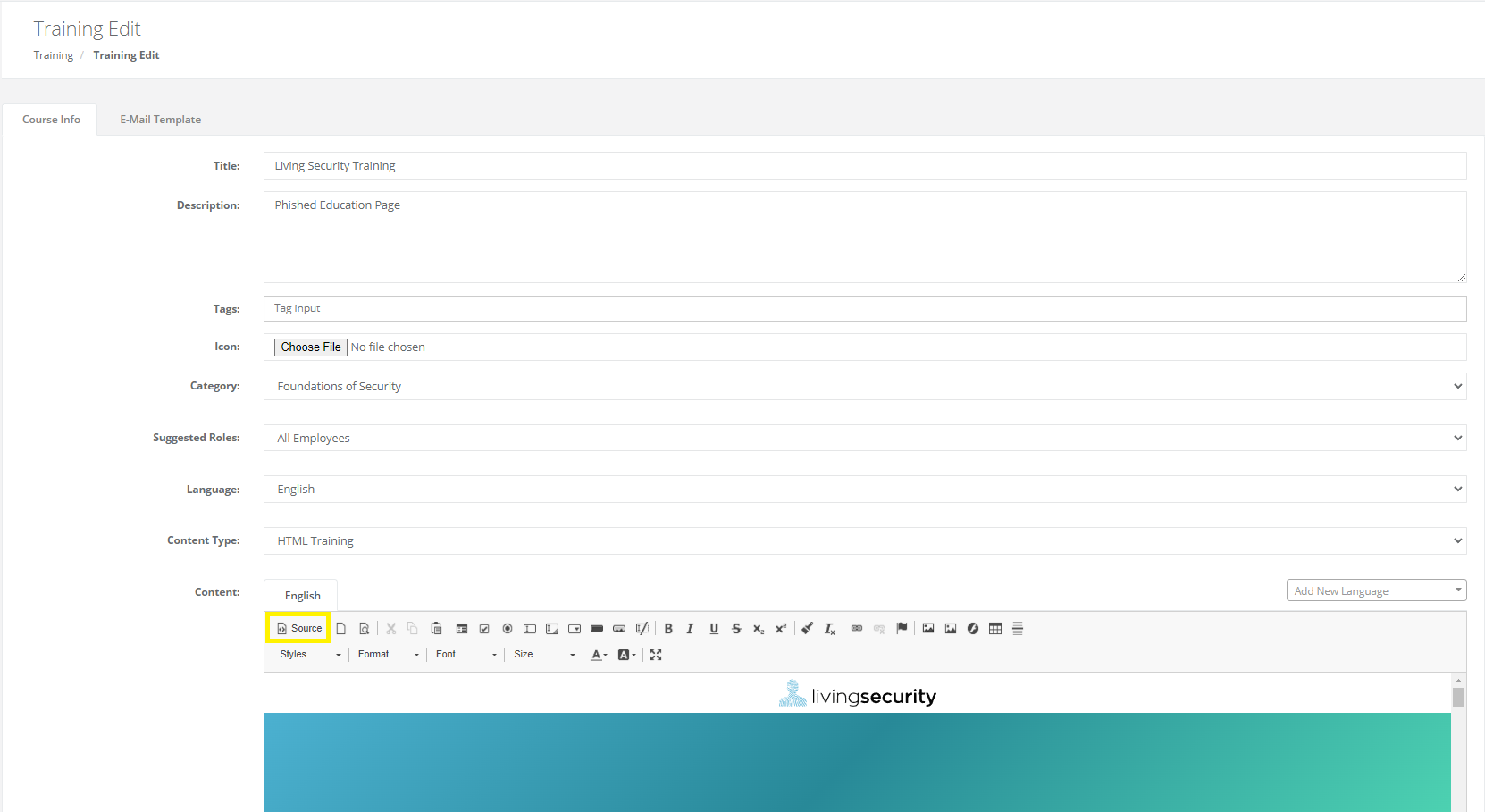
Next, you will scroll down and click on Source to copy the HTML code for the Training page.
Next, you will copy ALL of the HTML code: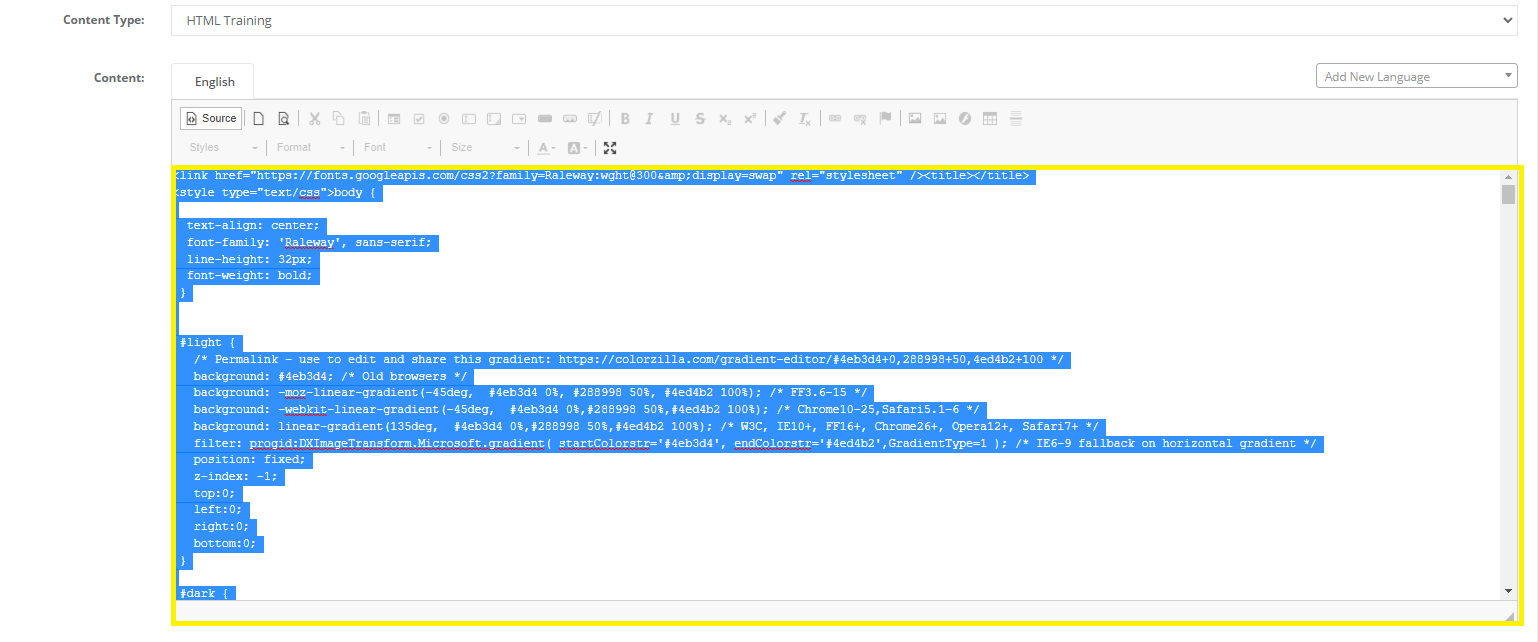
Once you have copied the HTML code, you will head back to the desired Phishing template in the Phishing Scenario tab and click edit.
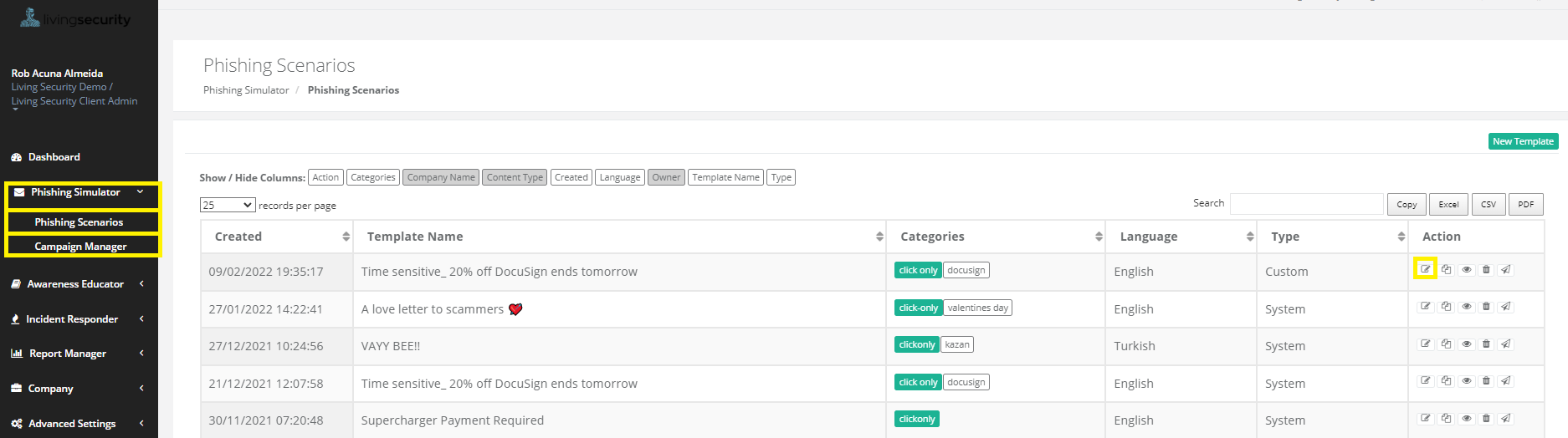
You will then want to find the field that is titled "Landing Page Name". Click on the drop down box to see if there are more than one. 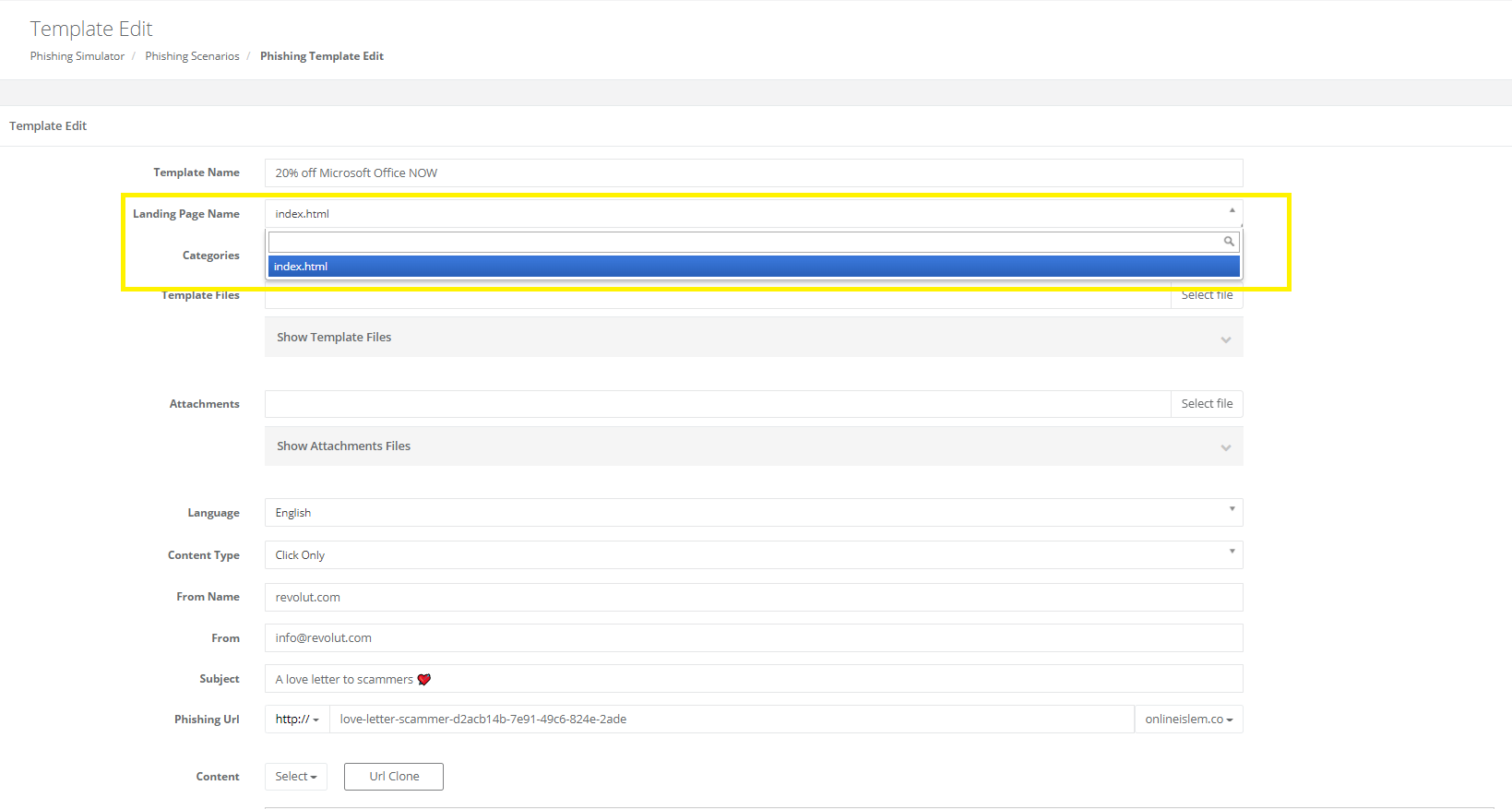
In this example, there is only one, but there may be a template with two. Next, you will want to toggle the content selected to the Landing Page you find in the drop down box. 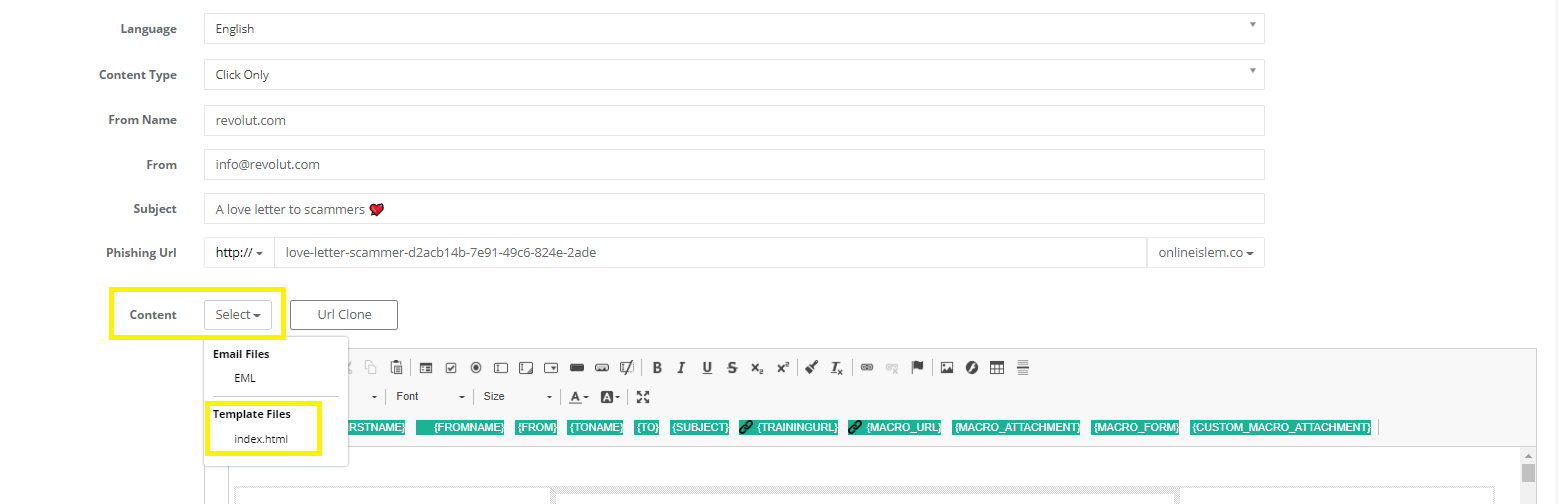
After toggling to the correct Template, which will be named the same as the field in Landing Page, you will toggle to Source and replace the existing HTML code with the HTML code you copied from the Training Page. 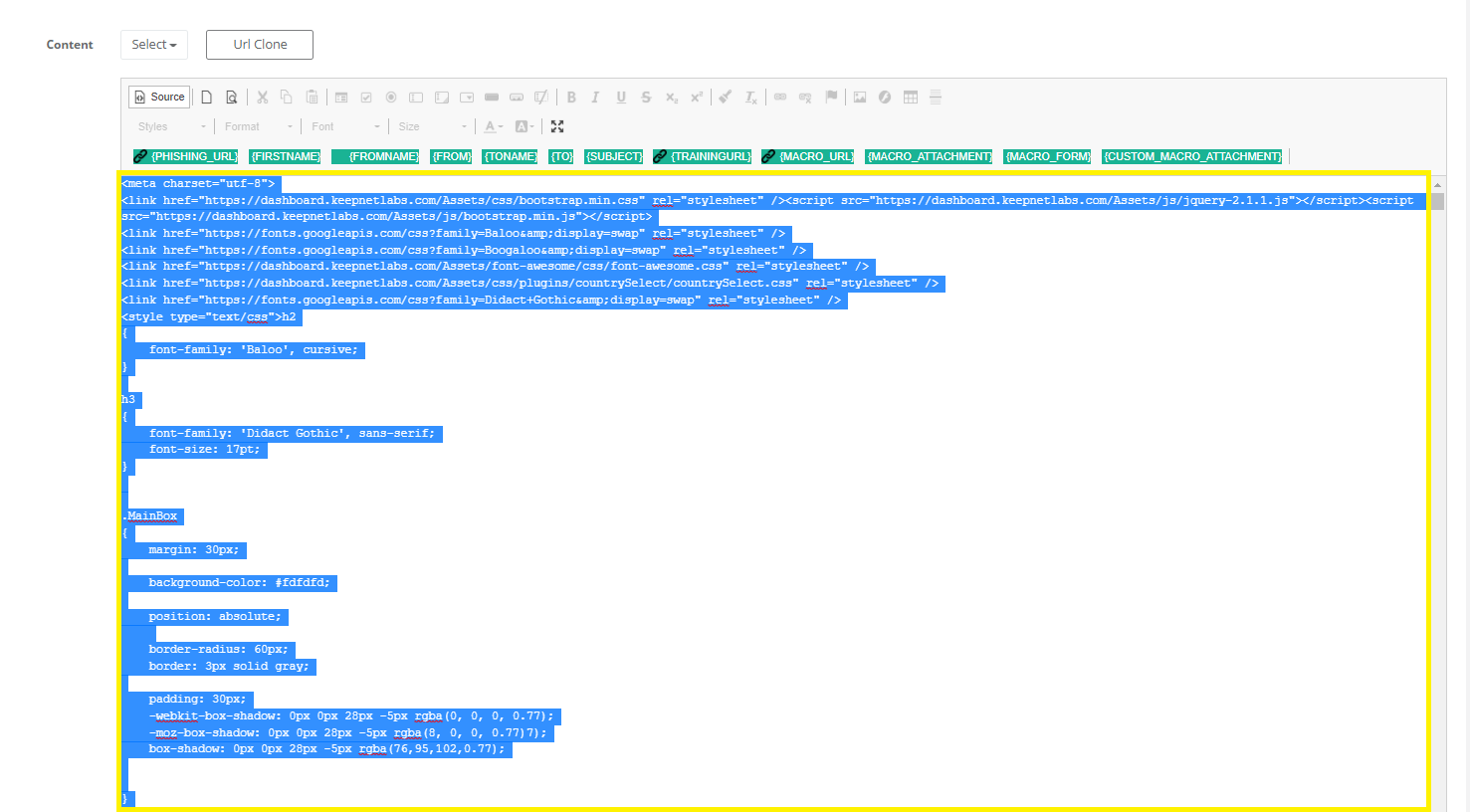
Save the template once you are finished pasting. We recommend testing out the template on yourself to make sure the changes were applied successfully.
If you're using a training page with a data-submit template, the training page will be best added within Campaign Manager.
To add a Training Page you have created, you will go to Phishing Simulator>Campaign Manager. 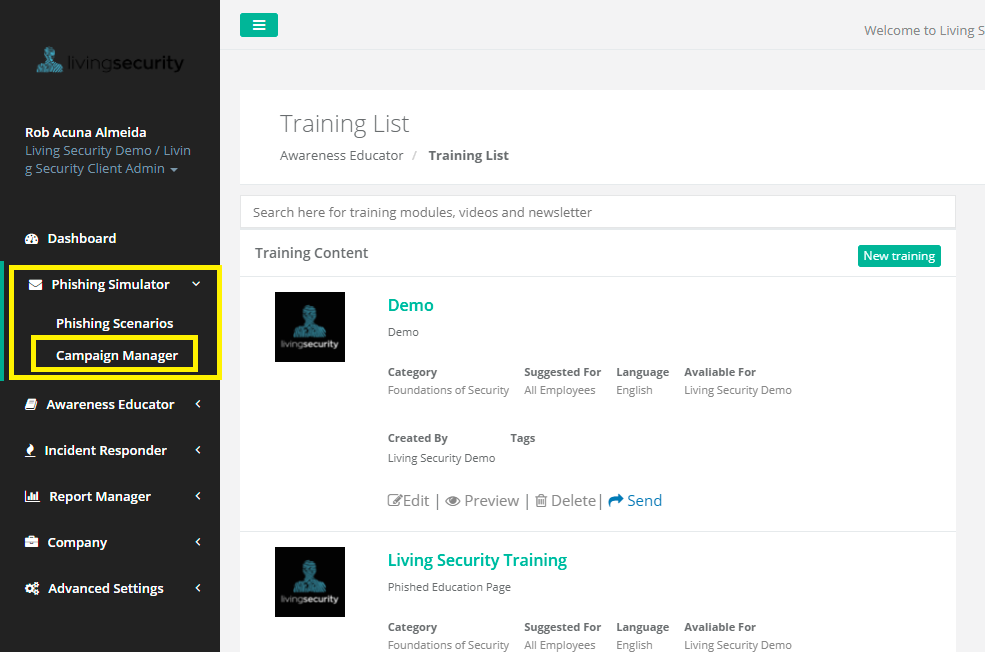
Next, you will create the campaign with your Target Users. 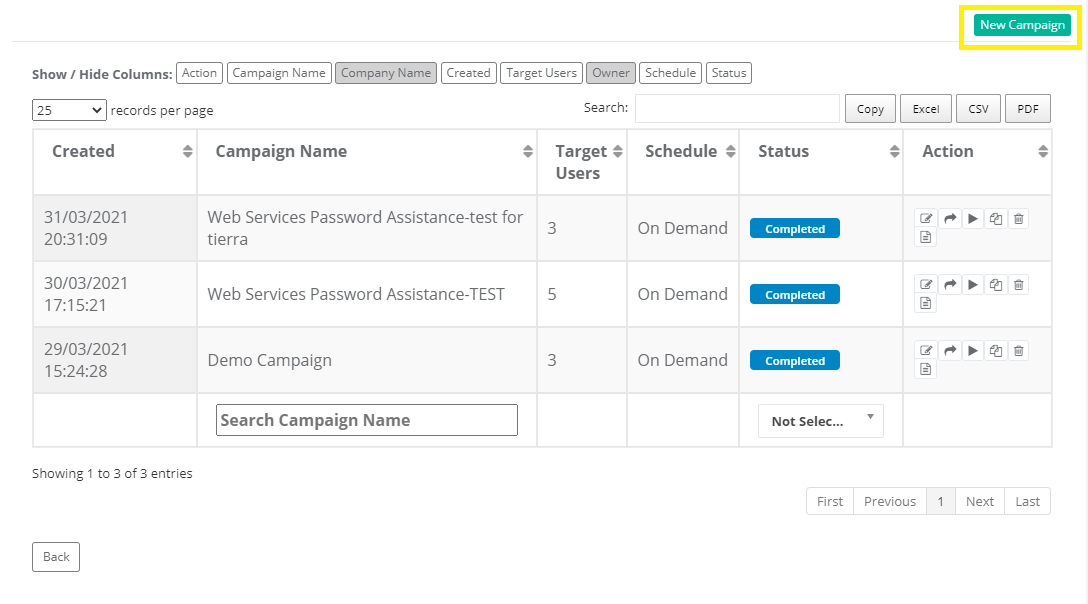
You will fill out the Campaign information until you reach 'Training List'. This is found towards the bottom of the campaign creation page as highlighted below.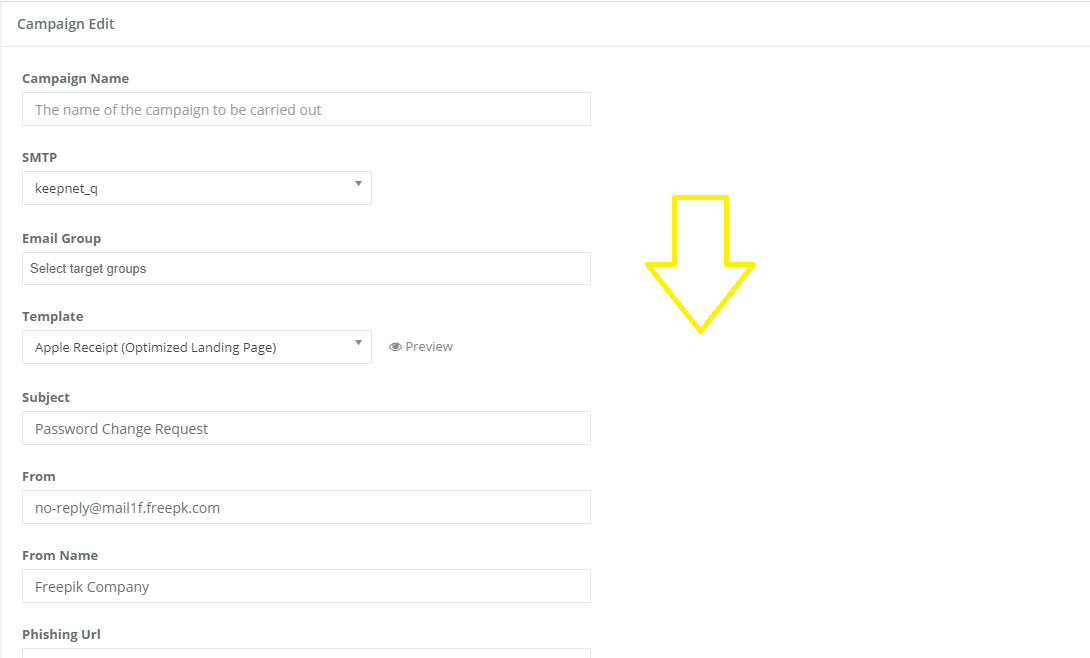
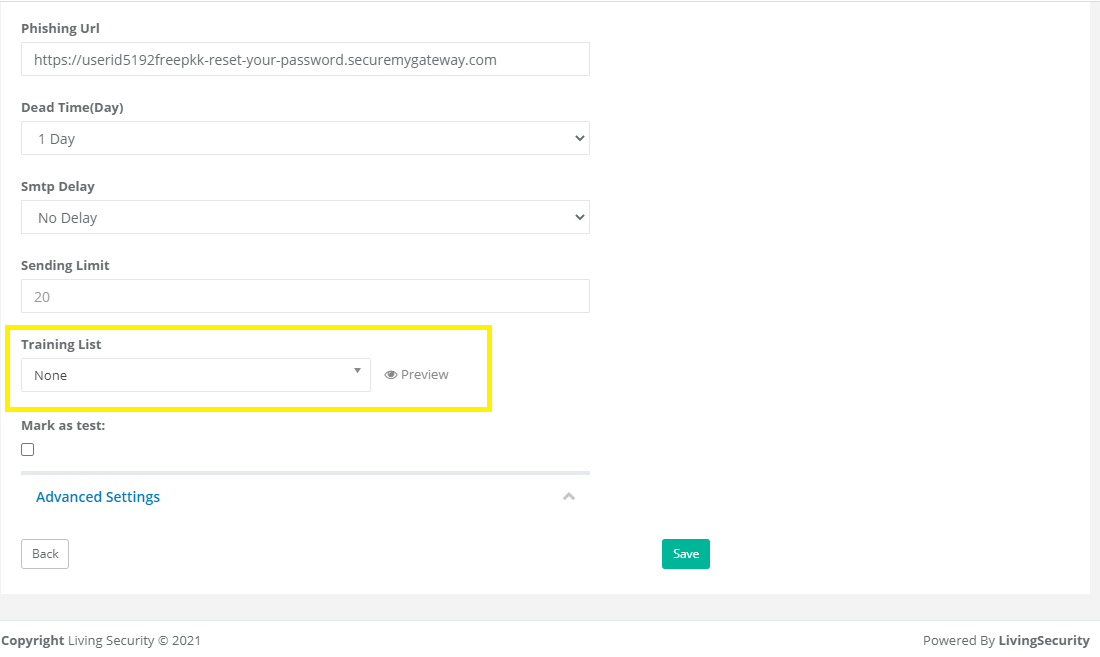
You will then be able to search and select the Training Page you have created and even preview it with the Preview button. 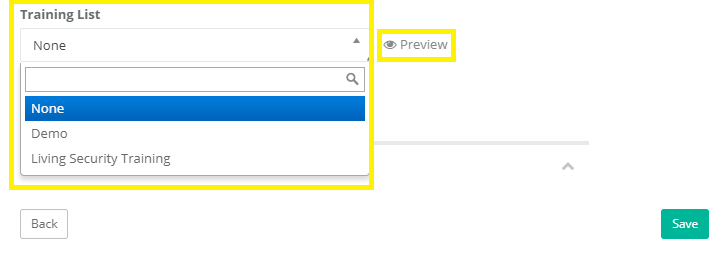
Adding a training page within Campaign Manager can be used for both template types, however, there will be a quick redirect when using a click-only phishing template. The redirect will be from the default landing page to the Training Page. Remember, you can update the template to go to an alternate landing page or directly to the Training page if needed.
If you would like further information on how to build a Phishing campaign or create a Training Page on the Phish platform, check out our support article How Do I Launch a Phishing Campaign? or How Do I Create a Training Page.
If you have any further questions, feel free to contact us at help@livingsecurity.com.
