
Sometimes you need to move fast. Take Action gives you the ability to step in the moment you spot a risk, an insight, or an opportunity to shift behavior — no campaign setup, no waiting.
From anywhere in Unify where identities appear, you can go from insight to intervention in just a few clicks. Whether you're reinforcing good behavior or responding to a detection, Take Action keeps you in control without disrupting your automated workflows.
With Take Action, you can:
- Intervene with a specific group of identities, right now
- Send targeted nudges, scorecards, training, or phishing simulations
- Layer human-led actions on top of your existing automated programs
Where You Can Take Action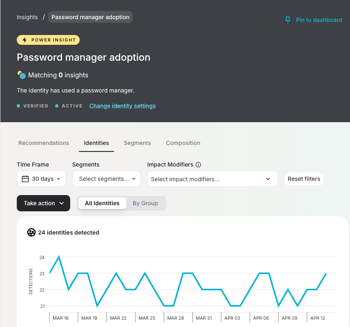
The Take action button is available anywhere in Unify that shows an identity table, including:
- Dashboards
- Insights views
- Detection-driven identity lists
- Any filtered identity list
The identities available always reflect exactly what's on your screen — so what you see is what you act on.
How to Take Action
Step 1: Choose Your Action Type
Click the Take action button and select what you want to send:
- Send nudge — a targeted message to prompt a behavior change
- Send scorecard — share an identity's security score directly with them
Step 2: Select Who the Action Applies To
Choose your audience:
- All Identities — applies the action across your entire organization
- Custom Cohort — target an existing cohort you've already defined in Unify
- Filtered Identities — acts on the exact list currently on your screen, filters included. The list is captured at that moment and won't change after the action is sent.
Step 3a: Set Up Your Nudge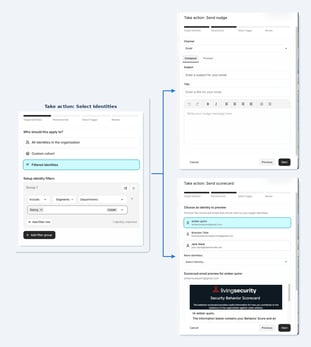
Choose your delivery channel (Email, Slack, or Microsoft Teams), then fill in the subject, title, and message body. Use the Preview tab to see exactly how your nudge will appear to recipients before moving on.
Step 3b: Preview Your Scorecard
For scorecards, you'll see a preview of the email that will be sent. Select any identity from your target list to see a personalized preview of their scorecard before sending.
Step 4: Review and Send
Confirm your audience and message, then send.
Tracking Your Actions
In the left nav, Actions is your hub for everything you've sent. From there you can:
- View All Actions — a complete log of every action taken
- View Action Plans — structured, trackable campaigns built for measuring behavior change over time
Action Plans include full reporting on outcomes. One-time actions like nudges and scorecards appear in All Actions with a summary of when they were sent and who received them.
