
Replacing a PDF is part of content personalization.
- To begin personalization, start in the Living Security Catalog
- In either Preview View or List View, heart ❤️ the content to move it to My Catalog
- Go to List View (tab along the top of the catalog)
- Once in List View, navigate to My Catalog using the left navigation
- Find the content in My Collection
- Hover on the content folder and use the three dot menu to copy the content
- Or click through until you see the Personalize button
- Personalized content does not receive Living Security updates nor will we have access to translations for that module🚫
- Click through to the Document asset and click: Replace a file
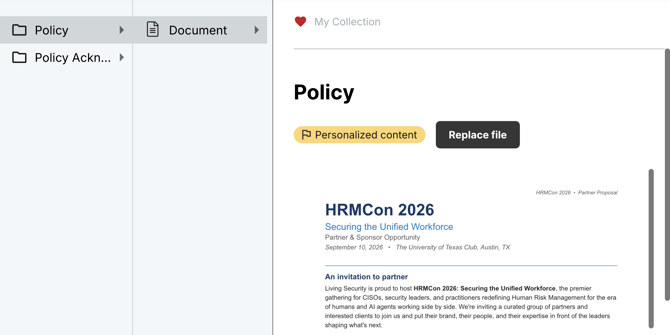
- The document will take on the name of your file and will be visible to the end user.
Document FAQs:
- Supported file type: PDF
- Dimensions: In order to support dynamic image resizing for end users, standard portrait or landscape PDFs must follow standard dimensions.
- Multipage PDFs are paginated requiring end user to select Next between pages
- Hyperlinks: Hyperlinks on PDFs are assigned to an area on the document. Due to screen resolution variations, the highlighted clickable area may not be in the intended area for end users. We recommend using only one hyperlink per page and selecting the entire page as the area for the hyperlink.
- PDFs should be grouped as they are going to be used and saved as an individual file.
