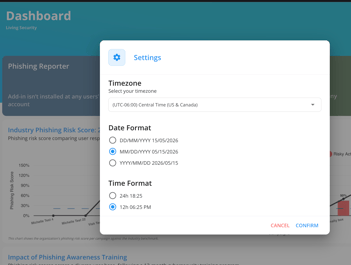
Timezone
The Timezone setting controls how all dates and times are displayed throughout the platform interface. Once set, every timestamp you see, from campaign schedules to phishing simulation results, will reflect your chosen timezone.
Date/Time Format
The Date/Time Format setting lets you choose how dates and times are visually presented on the platform. Once selected, the format is automatically applied across the entire user interface.
How to Access the Setting
-
Log in to the phishing platform.
-
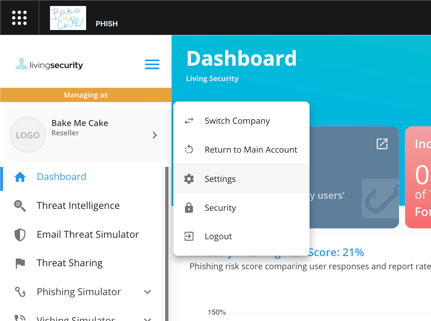
In the top-left corner, locate the user profile area — this displays your company name, username, and company logo.
-
Click on the user profile to open the drop-down menu.
-
Select Settings from the drop-down menu.
How to Set Your Timezone
In the Settings panel, you will find the Timezone and Date/Time Format options.
-
To update the Timezone, click on the dropdown and search for or scroll to your preferred timezone (e.g., UTC+3, America/New_York, Europe/London).
-
Select your timezone. Save your changes.
From this point forward, all dates and times displayed on the platform will reflect your selected timezone.
NOTE: Each user can configure these settings individually, so different users within the same organization can have different timezone and format preferences.